
Last Updated: June 2026. We research independently. Some links are affiliate links — this costs you nothing and helps fund our work.
Most desk workers sit incorrectly — not through carelessness, but because their workspace is not configured to make correct posture the natural default.
When the chair lacks lumbar support, the monitor is too low, or the desk is at the wrong height, the body adapts by finding compensatory positions that reduce immediate discomfort but create cumulative strain over hours and months.
Quick links:
👉 Monitor Risers on Amazon.de →
The goal is not to hold yourself rigidly in an ideal position through effort. That approach fails within minutes when concentration returns to work.
The goal is to configure your chair and workspace so that the correct position is also the most comfortable and effortless one — so good posture is maintained automatically, without conscious effort.
Why Posture Matters More Than You Think
| Spinal area | Natural curve | What happens when unsupported |
|---|---|---|
| Lumbar spine (lower back) | Inward curve (lordotic) | Muscles contract continuously → fatigue → pain |
| Cervical spine (neck) | Inward curve | Forward head posture → increased load on cervical spine |
Correct sitting posture supports both curves passively — the chair and workspace configuration doing the work, not your muscular effort.
The Correct Sitting Position: Step by Step
Step 1 — Set Seat Height First
Seat height is the foundation. Everything else is adjusted relative to it.
Adjust the seat height until:
- Feet rest flat on the floor — not on tiptoes, not dangling
- Thighs are roughly parallel to the floor
- Knees are at approximately 90 degrees
If your feet do not reach the floor at the correct seat height for your desk, use a footrest. Do not lower the chair to reach the floor if doing so raises the desk to an uncomfortable height.
Signs your seat height is wrong:
| Problem | Cause |
|---|---|
| Feet dangling | Seat too high |
| Knees higher than hips | Seat too low |
| Having to reach up to desk | Seat too low relative to desk |
👉 See: Footrests on Amazon.de →
Step 2 — Set Lumbar Support Height
Sit all the way back in your chair so your back is in full contact with the backrest. Do not perch on the front edge.
Adjust the lumbar support up or down until it presses firmly and comfortably into the inward curve of your lower back. This curve sits between your waistband and the bottom of your ribcage.
The lumbar support should feel as though it is gently filling the gap between the chair and your lower back. Not pushing uncomfortably, not making no contact.
Signs lumbar support is wrong:
| Problem | Cause |
|---|---|
| Lower back rounding or flattening | Support too low or too far |
| Lower back pushed forward uncomfortably | Support too high or too close |
| No noticeable support | Support needs raising or chair lacks adequate lumbar system |
👉 See: Best Ergonomic Chairs for Back Pain →
Step 3 — Set Armrest Height
With your shoulders fully relaxed — not elevated, not deliberately pulled back — adjust the armrests until your forearms rest lightly on them with elbows at approximately 90 degrees.
The key test: your shoulders should be completely relaxed when using the armrests.
| Problem | Cause |
|---|---|
| Shoulders rise toward ears | Armrests too high |
| Hunching forward to reach armrests | Armrests too low |
| Reaching outward to rest forearms | Armrests too wide |
Correctly positioned armrests remove sustained shoulder elevation and upper trapezius tension — one of the most impactful adjustments and most commonly overlooked.
Step 4 — Check Seat Depth
If your chair has seat depth adjustment, set it so there is a two-to-three finger gap between the front edge of the seat and the back of your knee when sitting fully back against the lumbar support.
If your chair has a fixed seat depth, sit fully back and assess whether the front edge presses into the back of your knee.
If it does, the seat is too deep for your leg length. You will need to either sit forward (losing lumbar contact) or find a chair with adjustable seat depth (e.g., the Clouvou Clever Seat).
👉 See: Clouvou Clever Seat Review →
Step 5 — Set Monitor Height
Sit correctly in your adjusted chair. Look straight ahead.
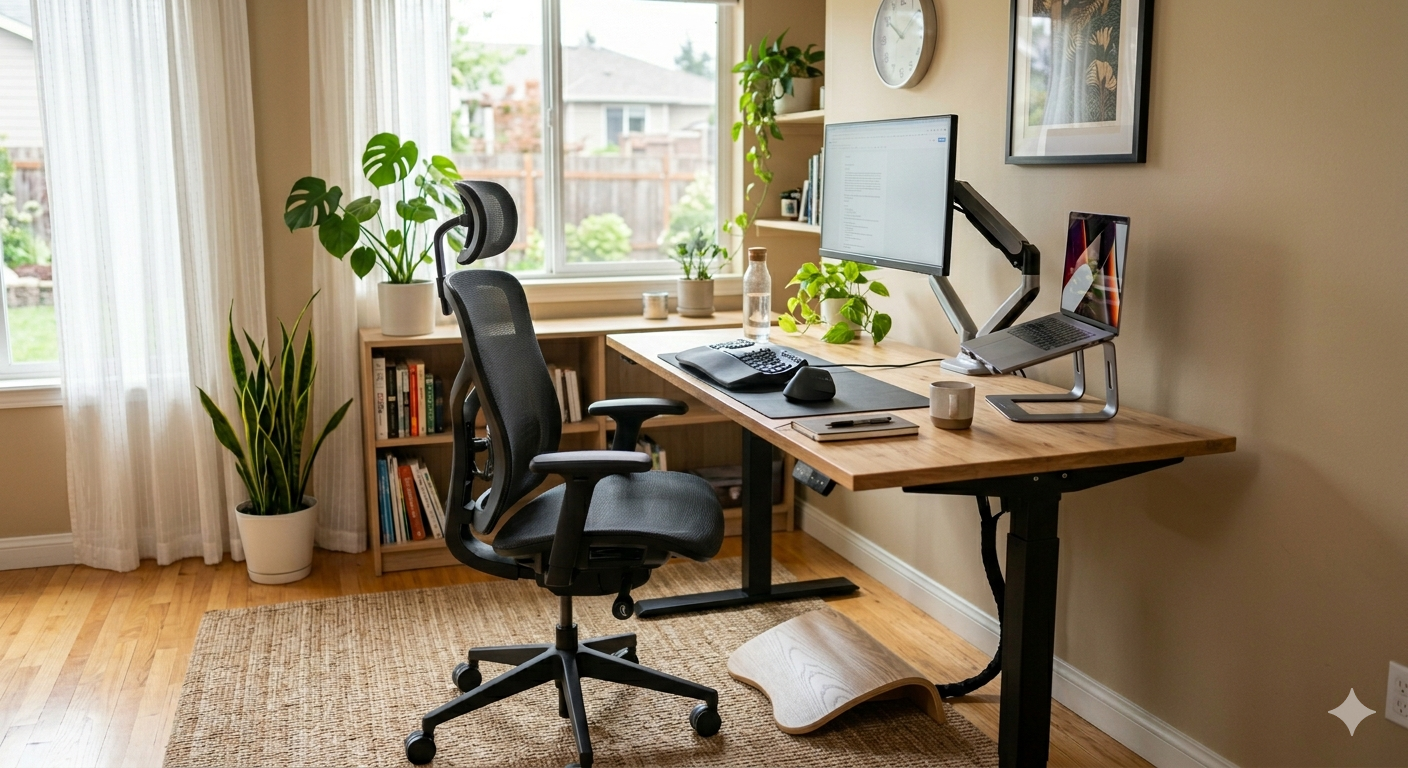
The rule: the top of your monitor should be at approximately eye level. The centre of the screen should be at a very slight downward gaze — not significantly downward or upward.
If the monitor is too low — which it almost certainly is if it sits flat on the desk — raise it.
| Solution | Approx. cost | Best for |
|---|---|---|
| Monitor riser | ~€20–40 | Simple, immediate fix |
| Monitor arm | ~€30–60 | Precise adjustment, frees desk space |
Signs monitor height is wrong:
| Problem | Cause |
|---|---|
| Chin dropping to look at screen | Too low |
| Looking upward at screen | Too high |
| Leaning forward to see clearly | Too far (or prescription glasses may need checking) |
Step 6 — Check Keyboard and Mouse Position
| Item | Correct position |
|---|---|
| Keyboard | Close enough that elbows stay at 90° when typing. Not reaching forward. |
| Wrists | Neutral position — neither bent upward nor downward |
| Mouse | Directly beside keyboard at same height. Not reaching across desk. |
Reaching forward to type causes shoulders to protract and the upper back to round — compounding lumbar strain.
Reaching across the desk for a far-right mouse creates lateral shoulder tension that builds through the working day.
What Correct Posture Looks and Feels Like
When everything is configured correctly, this is what you should experience:
| Body part | Sensation |
|---|---|
| Feet | Flat on floor or footrest, relaxed, weight evenly distributed |
| Legs | Thighs parallel to floor, knees at 90°, no pressure behind knees |
| Lower back | Gentle contact with lumbar support, no muscular effort |
| Upper back | Relaxed against backrest, not rounded or arched |
| Shoulders | Completely relaxed, not elevated or pulled back |
| Arms | Forearms resting lightly on armrests, elbows at 90° |
| Wrists | Neutral when typing |
| Head | Balanced over shoulders, not pushed forward, slight downward gaze |
If any of these feels effortful to maintain, the workspace element causing the effort needs adjustment — not the posture.
The Most Common Sitting Mistakes
| Mistake | Cause | Fix |
|---|---|---|
| Slouching | Inadequate lumbar support | Chair with adjustable lumbar support |
| Leaning forward | Monitor too far or too low | Correct monitor distance and height |
| Crossing legs | Habit | Keep both feet flat on floor or footrest |
| Perching on front of seat | Seat too deep or habit | Sit fully back against backrest |
| Sitting too long without moving | Flow state | Reminder every 30–45 minutes to stand/walk |
Posture and the Chair: The Critical Link
It is not possible to maintain correct sitting posture consistently in a chair that does not support it.
| Chair issue | Consequence |
|---|---|
| No adjustable lumbar support | Lumbar curve unsupported → muscular effort to maintain or pain |
| Armrests don’t adjust to correct height | Shoulder elevation or hunching |
| Seat too shallow | Forces user to sit forward, losing lumbar contact |
Correct posture is a function of both awareness and workspace configuration. The awareness fades when concentration returns to work. The workspace configuration is permanent.
👉 See: Ergonomic Chair Buying Guide →
Movement: The Element Posture Cannot Replace
Correct sitting posture reduces the rate at which sitting creates physical strain. It does not eliminate it entirely.
The body requires movement — regular postural variation that loads different structures and allows others to rest.
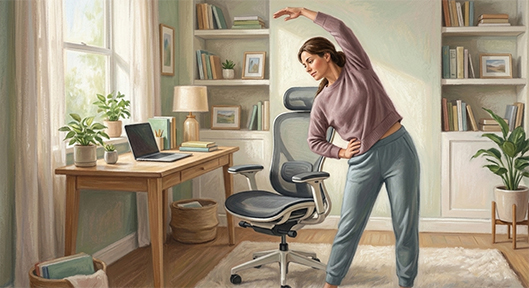
The practical target: stand or walk for a few minutes every 30 to 45 minutes.
This does not require a standing desk, though a standing desk with memory presets makes consistent alternation significantly easier.
👉 See: Sitting vs Standing Desk →
👉 See: How to Reduce Back Pain at a Desk →
Correct Sitting Posture: Quick Reference Checklist
Print or save this and run through it each time you sit down:
- ☐ Feet flat on floor or footrest
- ☐ Thighs parallel to floor, knees at 90 degrees
- ☐ Back fully in contact with chair backrest
- ☐ Lumbar support pressing into lower back curve
- ☐ Shoulders relaxed, not elevated
- ☐ Forearms resting lightly on armrests at 90 degrees
- ☐ Wrists neutral when typing
- ☐ Monitor top at eye level
- ☐ Screen at arm’s length (50–70 cm)
- ☐ Keyboard close to body, not reaching forward
- ☐ Mouse directly beside keyboard at same height
Run through this at the start of each working day. It takes thirty seconds and ensures the configuration has not drifted.
Final Verdict
Correct sitting posture at a desk is not a technique to practise — it is a configuration to achieve.
When the chair is adjusted correctly, the monitor is at eye level, the desk is at the right height, and the keyboard is close, correct posture is the natural result of simply sitting down and working.
Configure the workspace correctly, run through the checklist, take regular movement breaks, and the back pain that most desk workers accept as inevitable becomes preventable.
👉 See: Best Office Setup for Back Pain →
👉 See: Ergonomic Chair Buying Guide →
Frequently Asked Questions
What is the correct sitting posture at a desk? Feet flat on floor, thighs parallel, knees at 90°, back fully supported by lumbar support, shoulders relaxed, forearms at 90° on armrests, wrists neutral, monitor top at eye level. Correct posture should feel effortless — if maintaining it requires effort, a workspace element needs adjustment.
How do I stop slouching at my desk? Slouching is almost always a function of inadequate lumbar support, not poor discipline. A chair with adjustable lumbar support positioned correctly eliminates the postural collapse that produces slouching.
Is it bad to cross my legs when sitting? For occasional brief periods, no. As a habitual sitting position across a working day, yes — it creates pelvic tilt and spinal asymmetry. Keep both feet flat on the floor or footrest as the default.
How often should I change position when sitting? Every 30–45 minutes at most. Stand up, walk briefly, and return to a slightly different sitting position.
Does an ergonomic chair automatically fix posture? No — it provides the support that makes correct posture effortless, but it must be adjusted correctly for your body. Adjust seat height, lumbar support, armrests, and recline tension before assessing.
Related Guides
- Best Office Setup for Back Pain (2026)
- How to Reduce Back Pain at a Desk (2026)
- Ergonomic Chair Buying Guide (2026)
- Best Ergonomic Chairs for Back Pain (2026)
- Sitting vs Standing Desk (2026)